

Opening files
You don’t need to know which tool you want. Give Dogubako the file and it asks what should happen to it.
Three ways to bring files in
Section titled “Three ways to bring files in”- Drop one or more files anywhere on the window. An overlay shows where they will go.
- Click Choose files on Home to use the system file dialog.
- Click a file on your bench to keep working on a recent output.
If you drop a file onto a specific file field on a tool page, it goes straight into that field instead. In the desktop app, files dropped from your file manager that no field takes open the drop screen.
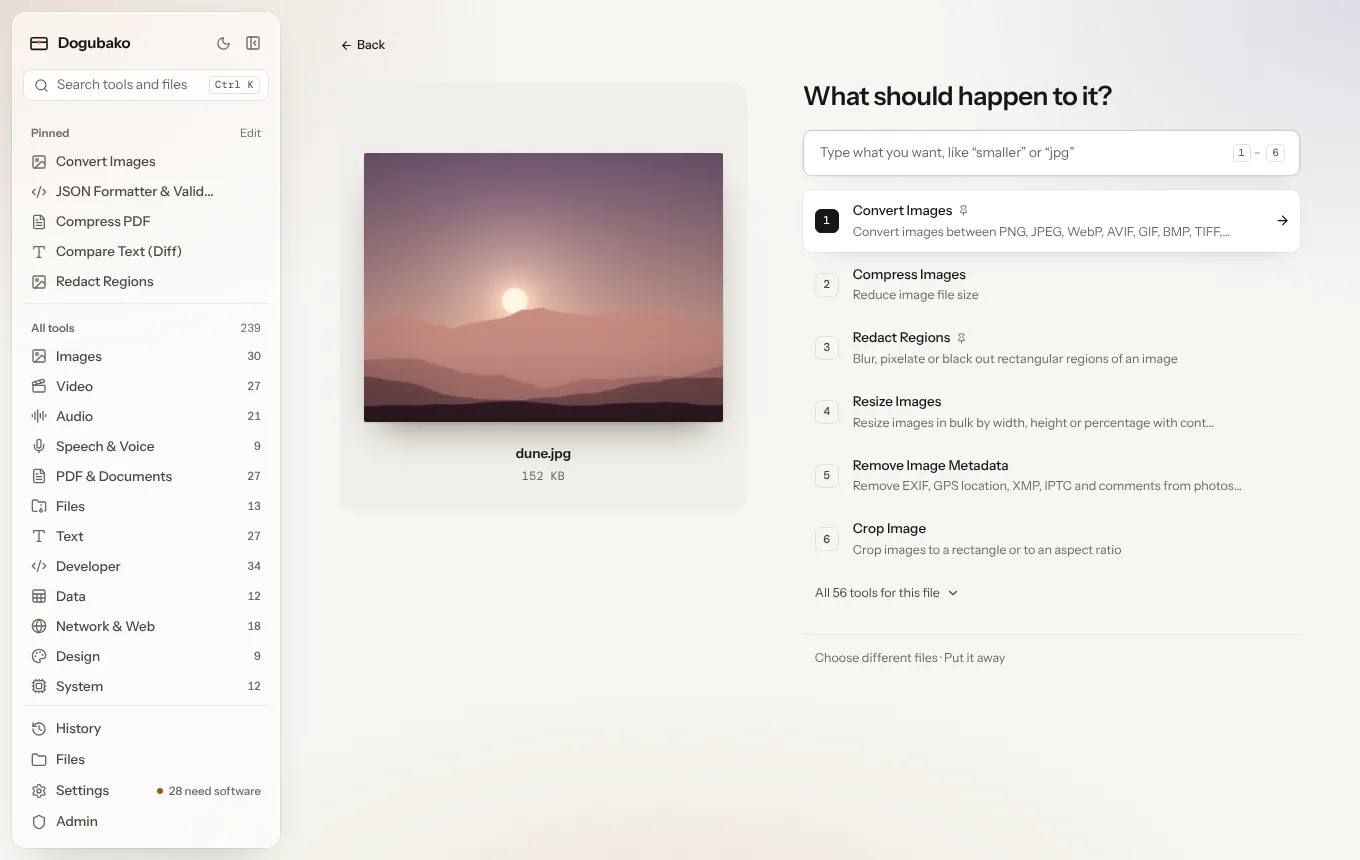
“What should happen to it?”
Section titled ““What should happen to it?””The drop screen shows the file (or the files) on the left and a short list of tools on the right:
- Only tools that take every file you dropped are offered. Drop three PDFs and you’ll see merging; drop a PDF and a photo and you’ll only see tools that accept both.
- The likeliest actions come first, chosen for the kind of file. For a photo that means compress, convert, resize, strip metadata, crop and so on; for a PDF, compress, merge, split, to images and extract text. Your pinned and recently used tools are nudged up.
- The top nine are numbered. Press 1–9 to open one.
- Use ↑ ↓ and Enter to choose, and Esc to clear what you typed or go back.
- All tools for this file expands the full list.
- Tools whose engine isn’t installed are still listed, marked “Needs software that isn’t installed”, so you can see what is possible.
Say it in plain words
Section titled “Say it in plain words”Type what you want in the box. Besides tool names, it understands everyday words:
| You type | You get |
|---|---|
smaller, shrink, email, web |
compress, resize, convert |
jpg, png, webp, mp3, mp4… |
the converters |
gif |
video to GIF and conversion |
text, words, transcript |
OCR, transcription, text extraction |
location, gps, privacy |
strip metadata, redact, face blur |
blur, hide, faces |
redaction and face blur |
background |
background removal |
combine, join, together |
merge |
separate, pages |
split, extract pages, reorder |
turn |
rotate |
cut, shorter |
trim, cut, crop |
bigger, sharper |
upscale, resize |
password, lock, unlock |
protect and unlock |
quieter, louder |
volume and normalize |
What happens next
Section titled “What happens next”The tool you pick opens with your files already filled in. Run it, and the result appears beside the original on the tool page.